On this page
Fly with your own radio, far beyond its range
Keep the radio your hands know. Plug it into the tablet or laptop running Aircast QGC and the app sends its sticks and switches to the drone over the same Starlink or 4G link as the video. Every channel arrives on the number your receiver uses, so flight modes, switches and payload channels work without touching the flight controller.
Set it up
Copy the script to the radio
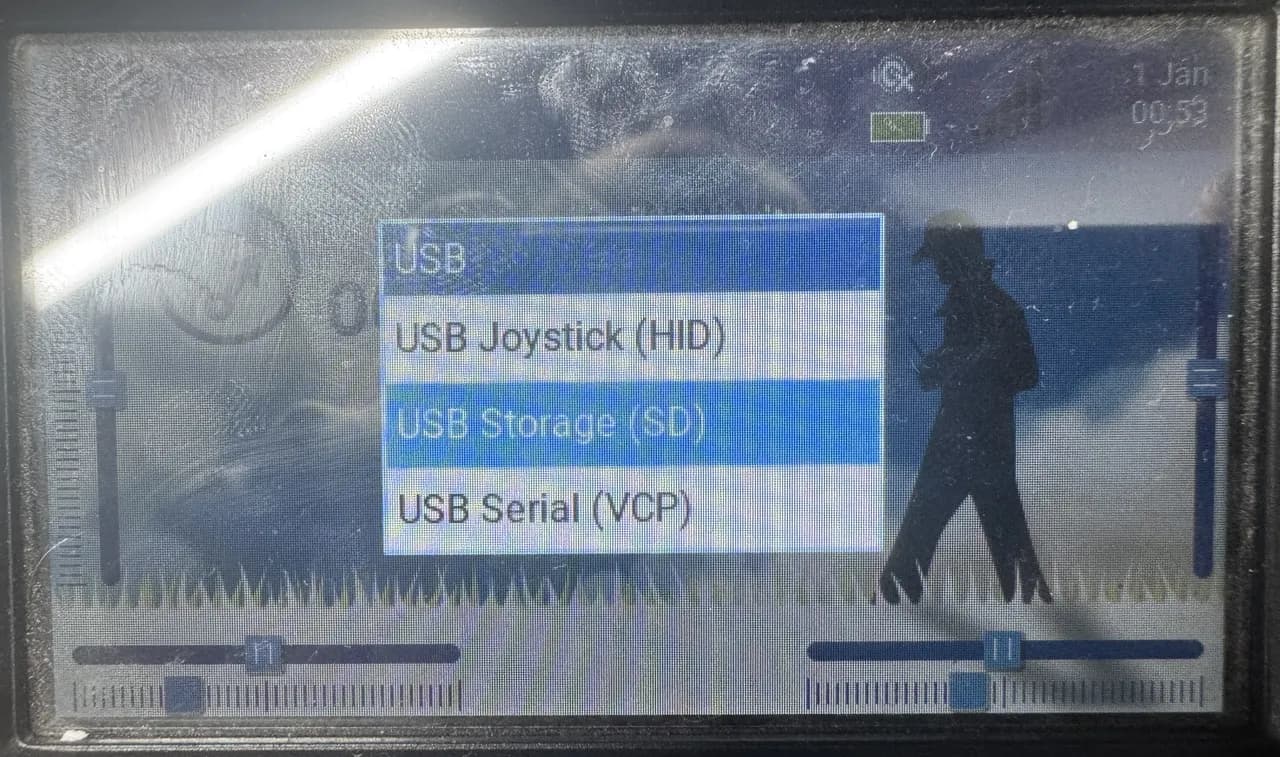
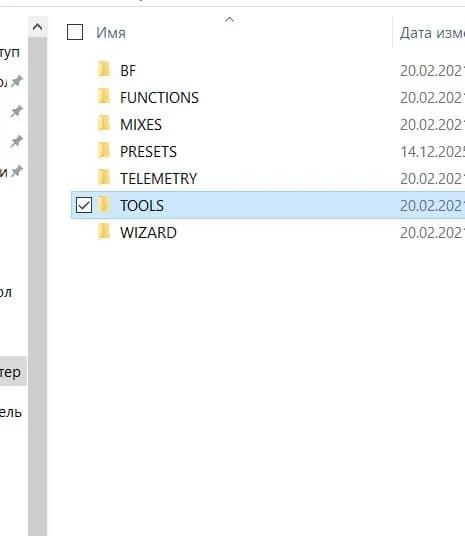
Plug the radio into a computer and choose USB Storage (SD).
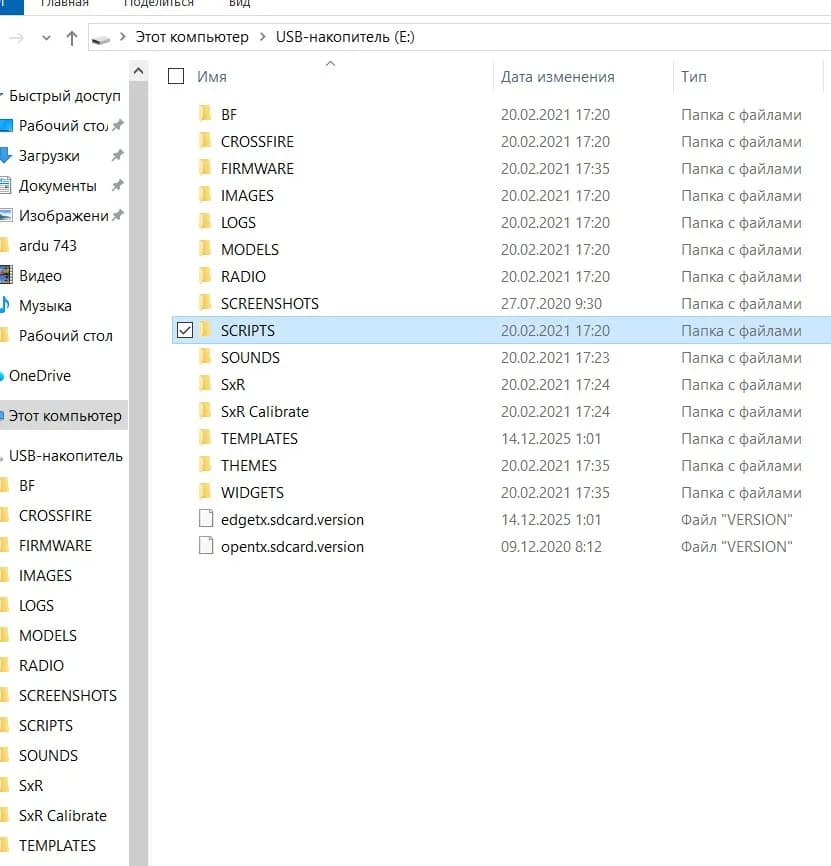
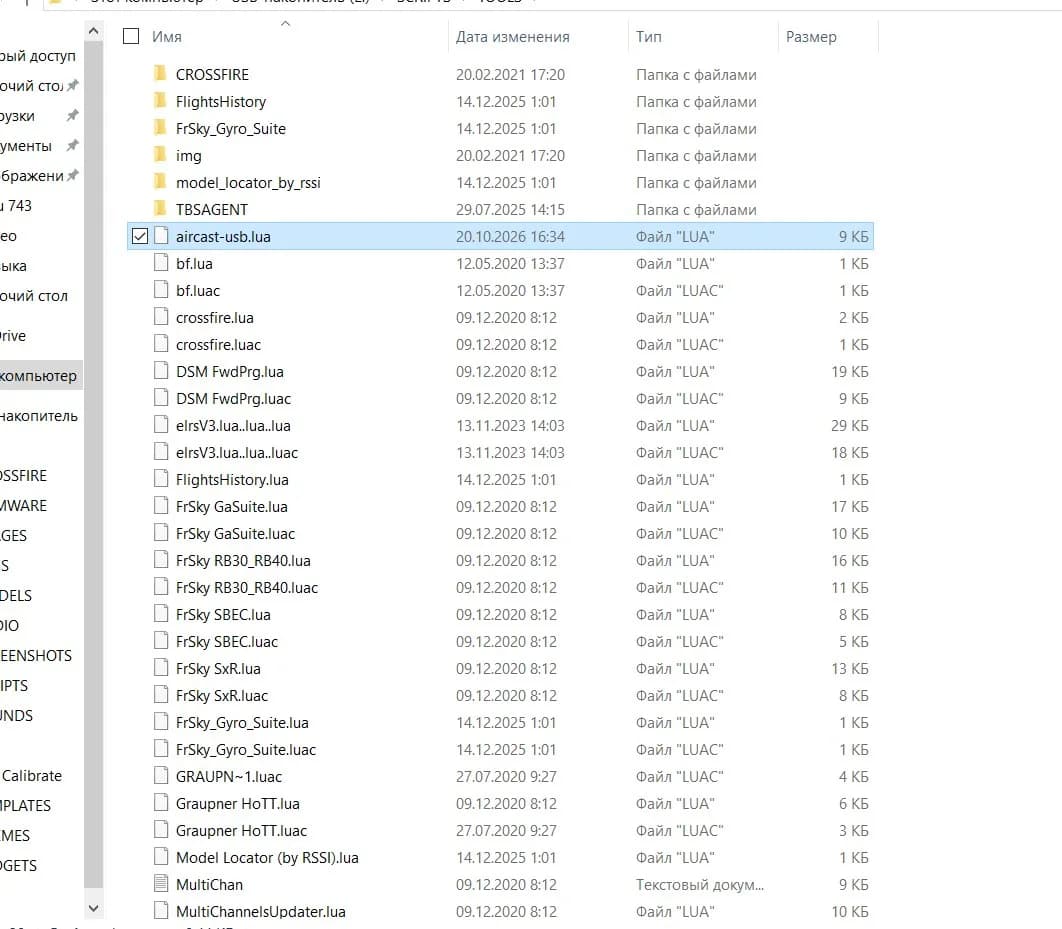
Download aircast-usb.lua (the download button is on the right of the file view) and copy it to this folder on the radio's SD card, then eject the card:
/SCRIPTS/TOOLS/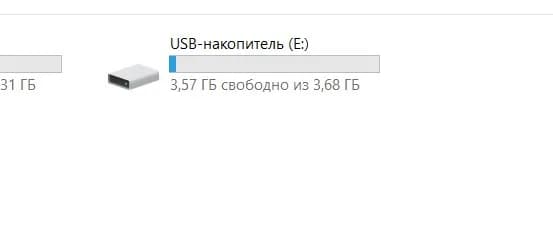
Let scripts use the USB port
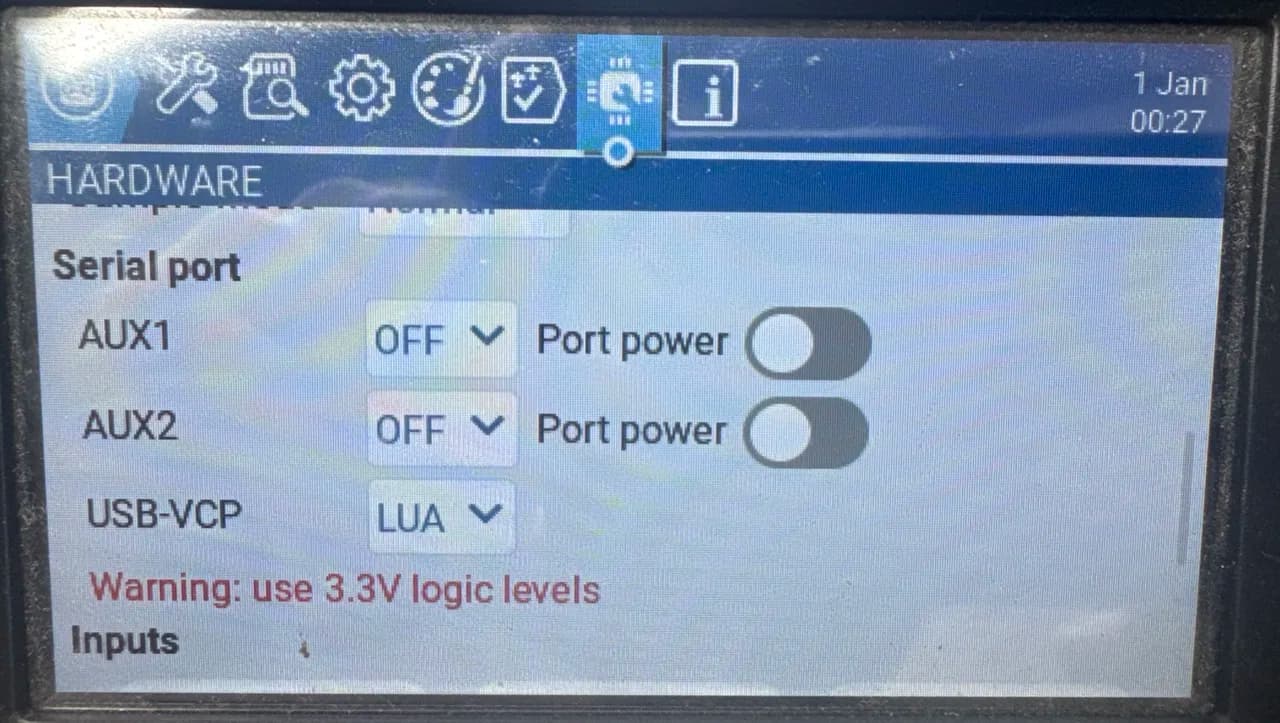
On the radio open SYS → Hardware and set the USB-VCP serial port to LUA. Without it the script runs but nothing leaves the radio.
Start streaming
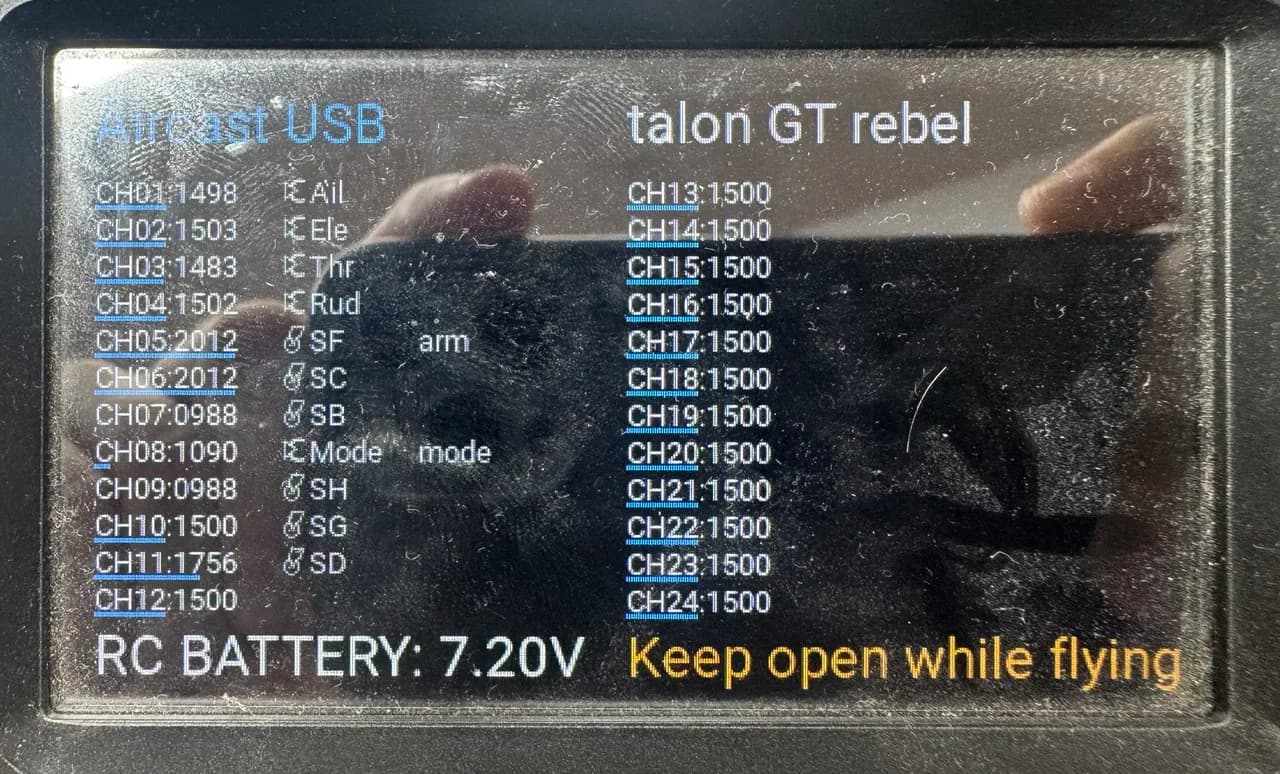
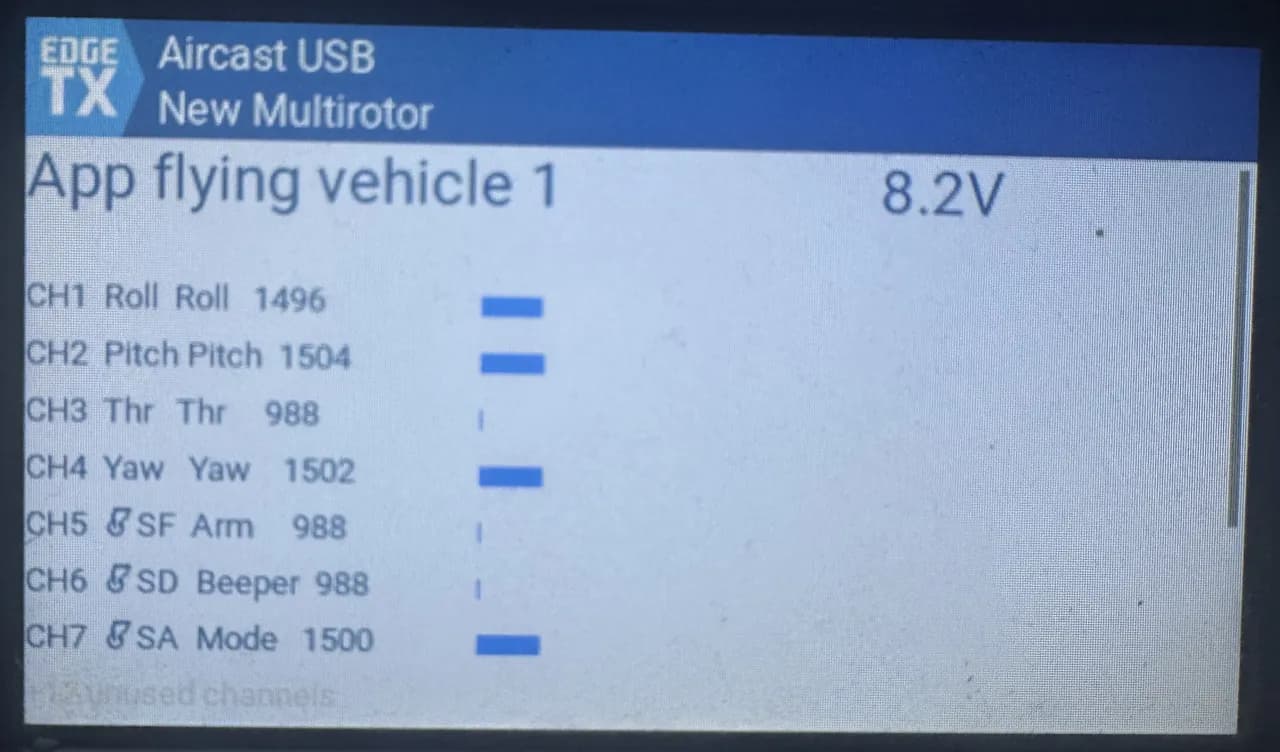
Plug the radio into the tablet or laptop and choose USB Serial (VCP). Then open SYS → Tools → Aircast USB radio. It lists every channel with its live value.
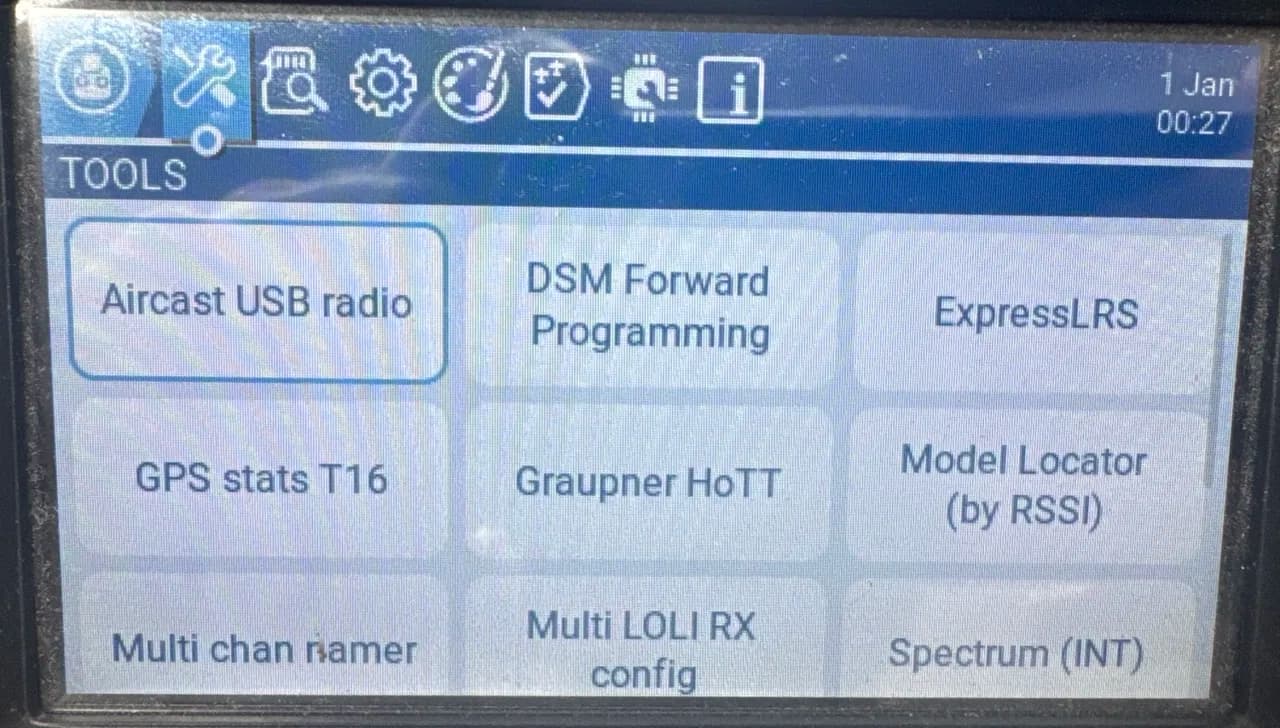
Keep that screen open while you fly. RTN closes it, and the radio stops streaming the moment it does.
Pick the radio in Aircast QGC
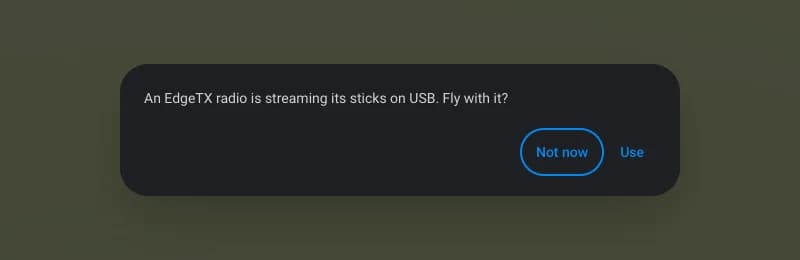
With the script open, plug the radio in. Aircast QGC v5.5.9 and the web app recognise what it sends and ask "An EdgeTX radio is streaming its sticks on USB. Fly with it?" Press Use.
- Android: connect the radio with a USB-C OTG cable and allow USB access when Android asks.
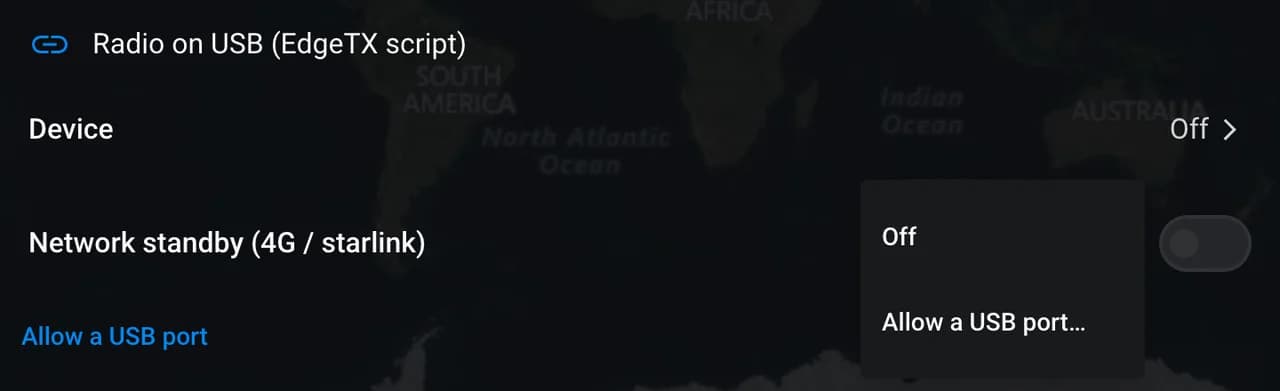
- Chrome on a computer, the first time: the page can't see the radio until you let it. Open Settings → Control → Radio on USB (EdgeTX script) → Device, choose Allow a USB port… and pick the radio.
No question, or you pressed Not now: pick the radio yourself. In the desktop and Android app open Application Settings → Comm Links → Radio on USB (EdgeTX script) → Device and choose it. It is listed by its USB name, for example Radiomaster TX16S Serial Port. v5.5.7 never asks, so pick it here. Don't add the radio as a link: a link would read it as a telemetry radio.
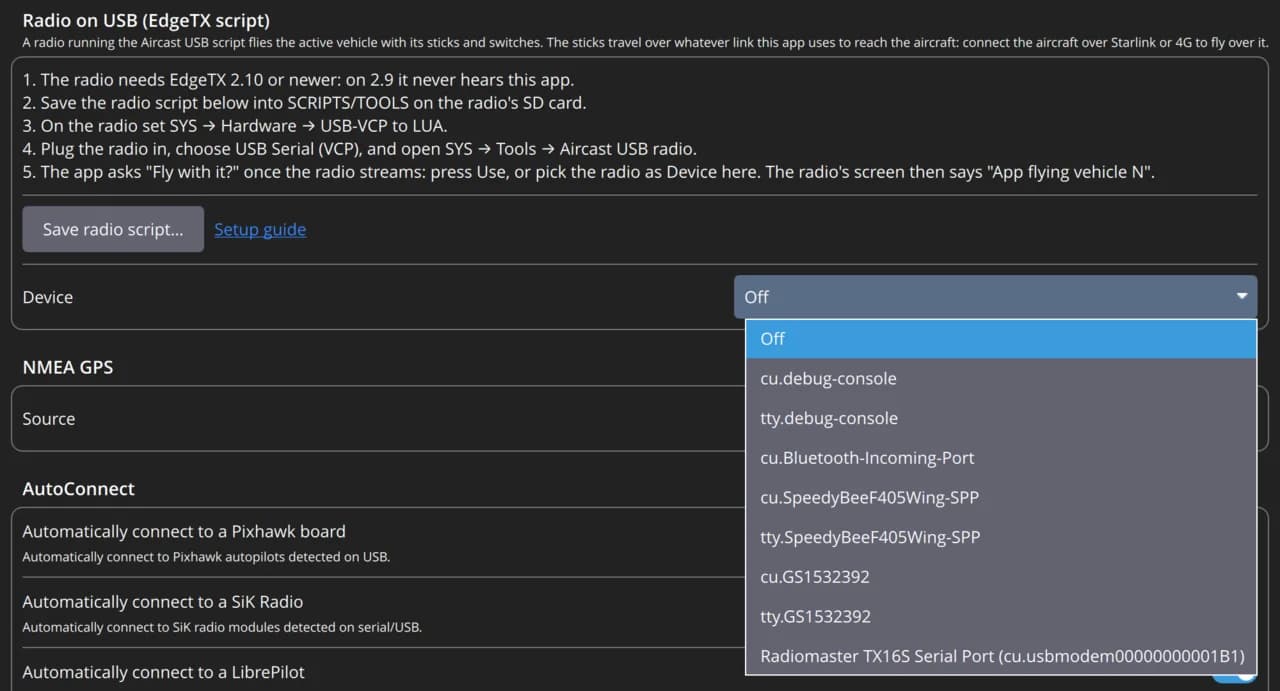
The same Device menu switches it off or picks another radio later. Only one app at a time can hold the radio's USB port, so close the other one first: Chrome with the web app, the desktop app, or stock QGroundControl.
Once the app answers, the radio's script screen says App flying vehicle 1, and its first rows take the names the drone gives those channels: Roll, Pitch, Thr, Yaw on a copter, Ail, Ele, Thr, Rud on a plane, Steer and Thr on a rover, following the drone's RCMAP_* settings.
Check it on the ground
Propellers off. Connect to the drone, then move every stick and switch and watch the channels follow on the app's Radio setup page. Check the switch that releases a payload with nothing loaded.
Success: each channel on the drone moves with the same channel on the radio's script screen.
How it works
| Piece | What it does |
|---|---|
| Aircast USB radio script | Runs on the radio and streams all 24 channels over USB, about 100 times a second |
| Aircast QGC | Sends channels 1 to 18 to the flight controller as RC overrides, up to 25 times a second, on the same channel numbers |
| Flight controller | Treats them as RC input: your flight mode switch, RCx_OPTION functions and pass-through servo outputs behave as they do on the receiver |
Already streaming with r2d2-usb-vcp.lua? It uses the same format, so Aircast QGC reads it as is.
Flying over Starlink or 4G
The sticks travel over whatever link Aircast QGC uses to reach the drone. Connect the drone over Starlink or 4G and the radio flies it over that link; connect it over local Wi-Fi and the sticks go over Wi-Fi.
Network standby (4G or Starlink), labelled 4G standby in v5.5.7, is for a drone that also has the radio's own receiver: the radio flies over its own link, and the network link takes over with the same channels only if that link drops or the flight controller reports a radio failsafe. It needs an ArduPilot multicopter with Aircast on board. With it off, the network link flies the drone all the time.
When something drops
| What happens | What the drone gets |
|---|---|
| The script is closed or the radio is unplugged | After half a second the app hands the RC channels back. Within range of the drone's receiver the radio flies it directly; beyond it, the flight controller's RC failsafe takes over. |
| The Starlink or 4G link drops | The last overrides expire after RC_OVERRIDE_TIME (3 s by default) and the GCS failsafe starts after FS_GCS_TIMEOUT. |
| A joystick is enabled for the same drone | The radio steps aside and the joystick flies. |
In v5.5.9 and the web app, the toolbar says where a picked radio stands: Radio · live while its sticks reach the drone, ready with no drone connected, paused while a joystick has the sticks, standby while network standby holds them, and stopped when the radio went quiet or was unplugged and its channels were handed back.
Troubleshooting
| What you see | What to do |
|---|---|
| The radio stays on Waiting for the app | Check SYS → About: EdgeTX 2.9 and older never hear the app. Update to 2.10 or newer. Then check the radio is picked as Device in the app, not added as a link. |
| The app can't open the radio, or says the port is busy | Another app holds the radio's USB port. Close Chrome tabs running the web app, the desktop app or stock QGroundControl, whichever you aren't using. |
| Pitch forward flies the drone backward | ArduPilot expects pitch forward to lower channel 2. A plane model on the radio sends the opposite. Set RC2_REVERSED = 1 on the drone, or fly it with a copter model on the radio. |
Limits
- ArduPilot reads 16 RC channels. Channels 17 and 18 are sent but ignored, and 19 to 24 are not sent. Move anything wired to a higher channel, such as a camera gimbal, to a free channel up to 16, or control the camera from Aircast.
- iPhone and iPad have no USB serial, so this needs the desktop app, Android, or Chrome on a computer.
What's verified
- A RadioMaster TX16S streams all 24 channels about 100 times a second
- On EdgeTX 2.12.5 the radio reads every answer from the app; on 2.9.4 it reads none
- Aircast QGC v5.5.7 and v5.5.9 on macOS flew an ArduPilot copter simulator from the TX16S, and the radio named its channels Roll, Pitch, Thr and Yaw
- Aircast QGC's core reads that stream and builds the RC override for channels 1 to 18
- In ArduPilot SITL an override on a channel reaches the servo output that passes that channel through, and holds when the link drops with no receiver in range
- Not yet flown on a real drone
Flash your Pi in about 5 minutes
The Aircast Flasher downloads the image, sets Wi-Fi and hostname, and verifies the card.
On This Page