AirCast Setup Guide
Flash our pre-configured Pi image, connect to the hotspot, bind your device. Done.
Download
Based on Raspberry Pi OS Lite (64-bit). Works with Pi 3, 4, 5, and Zero 2 W.
Latest Development Release
Version v1.2.4-dev.88 • Latest features, may be unstable
Raspberry Pi Image
Compatible with: Raspberry Pi 3, 4, 5, and Zero 2 W (64-bit ARM)
Installation Steps
Flash the Image
~5 minOption A: Raspberry Pi Imager
- Download Raspberry Pi Imager
- Click "Choose OS" → "Use custom"
- Select the downloaded image file
- Click "Choose Storage" → Select SD card
- Click "Write" and wait
Option B: balenaEtcher
- Download balenaEtcher
- Click "Flash from file"
- Select the downloaded image
- Select target → Your SD card
- Click "Flash!" and wait
Boot and Connect
~3 min- Insert the SD card into your Raspberry Pi
- Power on and wait 2–3 minutes for first boot
- Connect to the WiFi hotspot from your phone or laptop:
Network:
AircastDevicePassword:
123456789
Bind Your Device
~2 min- Open a browser and go to
http://aircast.local - Click "Bind Device Now"
- Click "Open AirCast Login" — sign in or create your account
- Enter the device code shown on the binding page
- The device connects automatically once authorized
http://192.168.4.1 instead — some networks don't support mDNS.What Success Looks Like
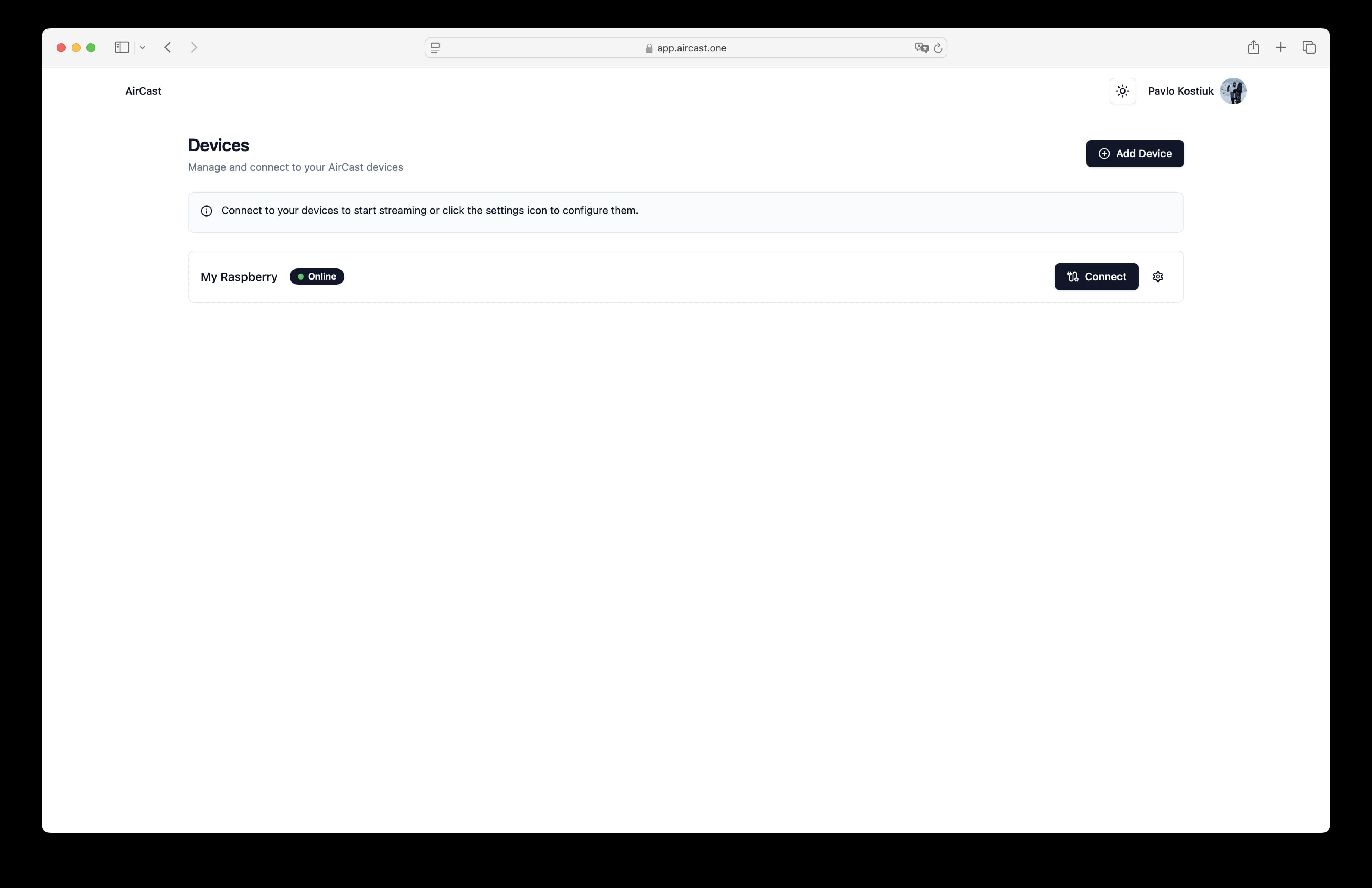
After completing setup, you should see:
- ✓Your device appears as "Online" in the AirCast dashboard
- ✓Live video feed visible in the web app
- ✓Telemetry data (altitude, GPS, battery) if flight controller is connected
- ✓Share the stream link with your team for simultaneous viewing
Compatible Devices
Fully supported: Raspberry Pi 5, Pi 4 Model B, Pi 400, Pi 3 Model B/B+, Pi Zero 2 W
Requirements: 8GB+ SD card, 4G/LTE modem or WiFi, USB or CSI camera, 5V power supply (BEC/regulator for drone mounting)
Need hardware? See our Recommended Starter Kit ($95–$180)
Configuration
SSH is enabled by default:
Default password: raspberry — change it immediately with passwd
The WiFi hotspot (AircastDevice / 123456789) stays active after setup for maintenance access. See SSH Access Guide for more details.
Troubleshooting
- Can't access aircast.local? Use
http://192.168.4.1instead. - No video stream? Check camera connection and enable it with raspi-config.
- No telemetry? Verify flight controller connection and MAVLink baud rate.
- Poor quality / disconnections? Check 4G signal strength. Try an external antenna.
Advanced Usage
Build Your Own Image:View the pi-gen build configuration
The AirCast Pi image is built using the official Raspberry Pi OS build tools. You can customize and build your own version.
On This Page